What is Windows Debloater: Bloatware Blaster?
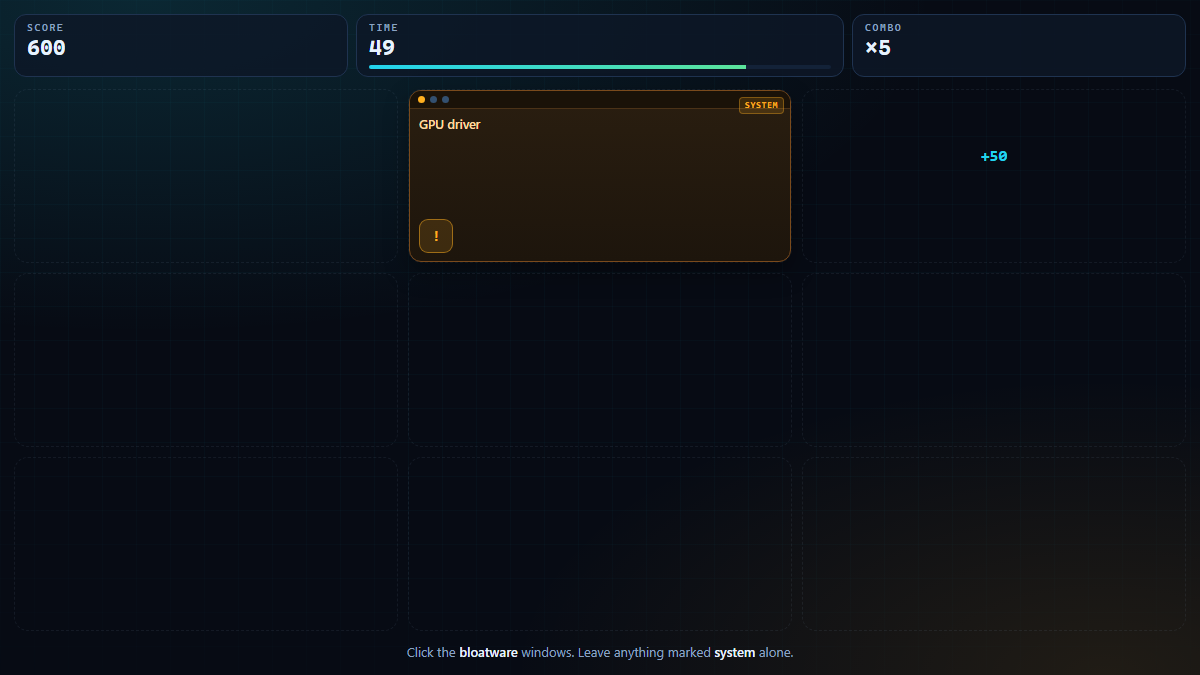
Windows Debloater is a free browser game about the least fun job on a new PC: clearing out the junk Windows ships with. In each 60-second run of Windows Debloater, pop-up windows full of bloatware appear across a pretend desktop. Click them to clean them up, build a combo, and score as much as you can before the timer ends. Windows Debloater runs in your browser, needs no download, and works on a phone.
The game is a simulation. Windows Debloater never scans, changes, or cleans your real computer. What it does do is make the rules of debloating easy to remember: the extra apps, ads, and upsells are safe to remove, while the system files underneath are not.
How to play Windows Debloater
The goal of Windows Debloater is simple: score points by clearing bloatware before the clock hits zero.
- Mouse or touch: click or tap a bloatware window in Windows Debloater to remove it. Each one is worth 10 points times your combo.
- Keyboard: press Tab to move between windows, then Enter or Space to clear the focused one.
- Combo: every bloatware window you clear raises the multiplier, up to ×5. Clicking a system file or empty space resets it to ×1.
- System files: windows marked system (explorer.exe, Defender, GPU and audio drivers) cost you 20 points and reset your combo. They are the parts of Windows you should never remove.
- Timer: one Windows Debloater run lasts 60 seconds. Each window vanishes faster as the clock runs down, so late clicks are worth more — if you can keep the combo alive.
Your best Windows Debloater score is saved in your browser. Finished runs can also be sent to the public leaderboard, which is shared by every visitor.
Tips for a higher score in Windows Debloater
- Watch the label, not the animation. System windows carry an amber system tag. Check the tag before you click in Windows Debloater.
- Clear the newest window first. Fresh tiles stay on screen longer, so you lose fewer points waiting for the next spawn.
- Protect the combo. One careless click on a system file costs 20 points and drops a ×5 multiplier back to ×1.
- Use both hands on a phone. Tapping with two thumbs keeps up with the late-game spawn rate better than one finger.
- Ignore the score until the last 10 seconds. Panic-clicking empty space is the fastest way to lose a Windows Debloater combo.
What is a Windows debloater?
A Windows debloater is a tool or script that removes software Microsoft and PC makers preinstall on Windows 10 and 11 — news apps, games, trialware, Copilot buttons, Bing widgets, and the ads that show up in the Start menu. A good Windows debloater also turns off the suggestion and telemetry settings that feed those features.
People look for a Windows debloater for three reasons: a new laptop feels slow out of the box, the Start menu is full of apps nobody asked for, and the privacy settings send more diagnostic data than they would like. The job is worth doing, but only if it is done carefully. Deleting the wrong system component can break the Start menu, Windows Update, or the Microsoft Store — which is exactly why Windows Debloater marks system files in amber.
How to debloat Windows 11 with a Windows debloater
You do not need a paid optimizer for this. A restore point, the built-in Settings app, and one well-known open-source script cover almost everything.
- Create a restore point first. Search for Create a restore point in the Start menu, select your system drive, and click Create. If a tweak goes wrong, this is your way back.
- Remove the obvious apps by hand. Open Settings → Apps → Installed apps, sort by install date, and uninstall the games, trials, and toolbars you will never open. This is the safest layer of debloating because Windows lets you reinstall anything from the Store.
- Turn off the advertising switches. In Settings → Privacy & security → General, disable the four options that let apps use your advertising ID and show suggested content. In Personalization → Start, turn off recommendations for tips, shortcuts, and new apps.
- Run one trusted Windows debloater script, not five. Pick a single open-source script with a public repository and read its README before running it. Win11Debloat is the most widely used option; our Windows 11 debloat script guide walks through the safe way to run it.
- Reboot and check the basics. Open the Start menu, Windows Update, the Store, and File Explorer. If something is missing, restore the point you created in step 1 and remove fewer items next time.
None of these steps require a registry cleaner, a driver updater, or a download from a page covered in fake buttons.
Free Windows debloater tools compared
| Tool | Open source | Best for | Official page |
|---|---|---|---|
| Win11Debloat | Yes | A scriptable debloat on Windows 10 and 11 | github.com/Raphire/Win11Debloat |
| Winhance | Yes | A GUI for debloating, tweaks, and customization | github.com/memstechtips/Winhance |
| WinUtil | Yes | Installing apps and applying common tweaks | github.com/ChrisTitusTech/winutil |
Create a restore point before running any of them, and read the options instead of accepting every default. A Windows debloater is only as safe as the list of changes you understand.
Is Windows Debloater the same as a Windows debloater?
No. Windows Debloater is a game that simulates the decisions; a Windows debloater is software that changes a real install. The game teaches the rule that matters — clear the extras, keep the system files — but the actual work happens in Settings, Group Policy, or a reviewed script. If you came here looking for a real tool, start with the five steps above and the Windows 11 debloat script guide.
Go deeper
The other Windows clean-up topics live on their own pages, so this one stays focused on debloating:
- Windows 11 optimizer: what actually speeds up Windows — startup apps, Storage Sense, power mode, drivers, and what to skip.
- Disable Windows telemetry on Windows 11 — Settings, Group Policy, the AllowTelemetry registry value, and the Home/Pro limit.
- Windows product key finder — find the key already on your PC, and avoid key-generator scams.
- Windows 11 debloat script — run Win11Debloat from the official repository and undo anything you dislike.
Frequently asked questions
Is Windows Debloater a real Windows cleaning tool?
No. Windows Debloater is a browser game. It does not scan, clean, or change your computer in any way — it only simulates clearing bloatware so you can learn what is safe to remove.
Is the game free?
Yes. Windows Debloater: Bloatware Blaster is free to play in the browser, with no sign-up and no download.
Can I play on a phone?
Yes. Windows Debloater runs in any modern mobile browser and is played by tapping the bloatware windows. It is designed to fill the screen width without horizontal scrolling.
Does the game save my score?
Your best score is stored in your browser, and finished runs can be submitted to the public leaderboard. No personal information is collected.
What is a Windows debloater?
A Windows debloater is a tool or script that removes preinstalled apps, ads, and telemetry settings from Windows 10 or 11. Well-known examples include the open-source Win11Debloat script.
How long is one round?
Each round of Windows Debloater lasts 60 seconds. Bloatware windows stay on screen for less time as the timer runs down, and system files start appearing to test whether you are paying attention.
Can I play in fullscreen?
Yes. Use the fullscreen button next to the like and share buttons. On phones the browser may rotate the view for a wider play area.
The game will not load — what should I do?
Reload the page once. If it still does not load, try a different browser or turn off any content blocker for this page; the game needs to load its own frame from usbwin.com. The guides below the game do not depend on it.
About usbwin
usbwin is a small Windows clean-up lab: one browser game and straight answers about debloating, telemetry, optimization, and product keys. We do not host installers, sell keys, or publish guides we cannot stand behind. The Windows guidance on this page was checked against Microsoft Learn, the Win11Debloat repository, and the official pages for the tools we mention.
Last updated: 19 November 2026. If something here is wrong, tell us through the contact page — we will fix it.
Player comments
Beat a high score? Tell us the number — or share a trick for clearing a wave faster.